
How do I keep my restoration locations from cannibalizing each other?
- How do I stop two of my own restoration offices from competing for the same searches and calls?
- What does it look like when my restoration locations cannibalize each other?
- Is the overlap actually costing me, or does it just look messy?
- Step 1: How do I decide which location owns each town?
- Step 2: How should each location's Google Business Profile be set up?
- Step 3: How do I stop my website pages from competing for the same town?
- Step 4: What do I do with two pages that already compete?
- Step 5: How do I run Google Ads for several locations without overlap?
- Step 6: What about Local Services Ads for more than one location?
- Step 7: How do I make sure reviews go to the right location?
- Step 8: How do I track calls and booked jobs by location?
- Should each location have its own website?
- What's different about location overlap for restoration companies
- A worked example: splitting 16 towns between two offices
- Frequently asked questions
- Key takeaways
- More in this section
- Sources
The short version
- Assign each town to one office, usually the one whose crew gets there fastest.
- Set each Google profile's service area to that office's towns only.
- One page per town on the website, linked to the office that serves it.
- One ad campaign per location, targeting its own towns and excluding the rest.
For restoration owners with two or more offices whose Google profiles, pages or ads keep landing on the same towns.
Get a free visibility audit · Book a growth call
How do I stop two of my own restoration offices from competing for the same searches and calls?
Give every town to exactly one location and make everything follow that map: each office’s Google Business Profile service area, its location and town pages, its ad targeting, its phone number and its review link. Google allows a separate profile for each location only when each has its own service area and its own staff, so overlapping territories work against the rules as well as against you. Where two of your pages already compete for the same town, merge them into one and redirect the other. Then track calls and booked jobs by location, so you can see whether the overlap is gone.
Running more than one location is where a lot of marketing quietly goes sideways, because every channel has to agree on who owns which town. That’s the kind of setup our local SEO work handles: our Growth package covers SEO for up to 2 locations, and Scale covers unlimited multi-location SEO and Local Services Ads across multiple markets. See how it fits a restoration company on our restoration marketing page, read the restoration marketing guide, or browse more restoration marketing questions.
What does it look like when my restoration locations cannibalize each other?
It rarely shows up as one obvious problem. More often it’s a handful of small ones that all point back to two offices claiming the same ground:
- The wrong office gets the call. A homeowner with water on the floor in a town your north crew can reach in minutes calls your south office, because that profile showed up first.
- Two of your pages trade places. Your north office page and your south office page both mention the same town, and Google switches between them, so neither holds the spot.
- Two campaigns chase the same towns. Each location’s ads target the same cities, so budgets overlap and you can’t tell which office’s money bought which job.
- Reviews land on the wrong profile. A customer served by one crew reviews the other location, and the profile that did the work doesn’t get the credit.
- Your numbers don’t add up. Both offices claim the same booked jobs, or neither does.
Is the overlap actually costing me, or does it just look messy?
Check before you rebuild anything. Two of your results showing for the same search isn’t a problem by itself; it only costs you when the slower office takes the job, when the split leaves both pages weaker than one would be, or when you’re paying twice for the same towns.
The quickest check for the website is Google Search Console. Its Performance report lets you group search data by query or by page, so you can pick a search like “water damage restoration” plus a town name and then switch to the Pages tab to see which of your pages showed up for it. One page per town is what you want. If two location pages keep showing for the same town searches, that’s real overlap.
For Maps and calls, look at where each office’s calls come from. If your call tracking or job software shows the south office booking jobs in towns the north crew reaches faster, the territory is the problem, not the marketing.
Step 1: How do I decide which location owns each town?
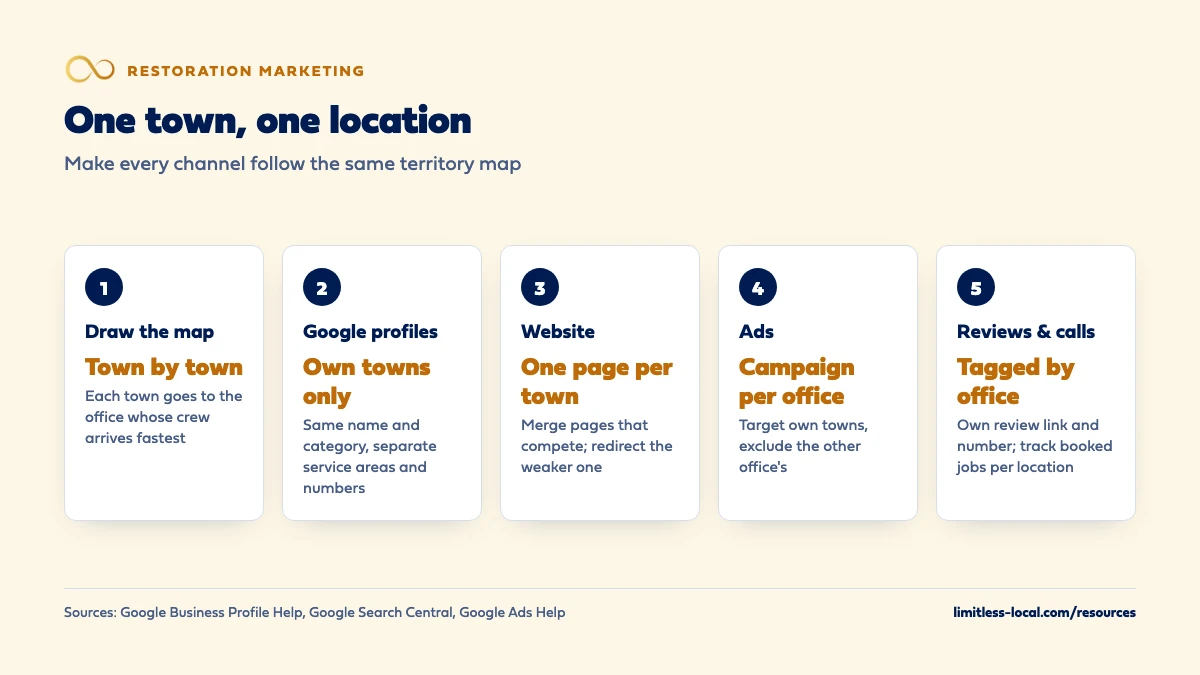
Make a single list of every town you serve and give each one to exactly one office. The rule that works best for restoration is simple: the town belongs to the office whose crew can get there fastest, because response time is what wins water and sewage calls.
- List every town either office lists today on its Google profile, website or ads.
- For each town, check the drive time from each office at a normal weekday hour.
- Give the town to the faster office. Where drive times are close, give it to the office with more crew capacity or the stronger local reputation there, and stick with that call.
- Write the list down where the office, the dispatchers and whoever runs your marketing can all see it.
That list becomes the map every other step follows. Lending a crew across the line during a storm week doesn’t change it; it’s about where each office markets, not where a truck can never go.
Step 2: How should each location's Google Business Profile be set up?
Google’s guidelines for representing your business say that if your service business has different locations with separate service areas and separate staff at each location, you’re allowed one profile for each location, and the overall service area shouldn’t extend farther than about 2 hours of driving time from where the business is based, though larger areas may suit some businesses. The same guidelines say a service-area business can’t list a virtual office unless it’s staffed during business hours, and that all locations must have the same name and the same category if they provide the same service.
For a restoration company with two real offices, that means:
- Same business name and primary category on both profiles.
- Each profile’s service area set to its own towns from step 1, and only those. You can list up to 20 service areas by city, postal code or other area, and you can’t set a radius, so the list is easy to keep clean.
- Each profile’s own local phone number and hours, so a call from that profile rings the office that serves it.
- Each profile’s own photos of that office’s crews, trucks and jobs.
Overlapping service areas don’t win you extra ground. They only make it harder for Google, your customers and you to tell which office should have shown up. Marketing a second restoration location covers setting up a new office’s profile from scratch.
Step 3: How do I stop my website pages from competing for the same town?
Give every town one page, or one mention on one location page, and never two. In practice:
- Each location page lists only its own towns from step 1, with that office’s address or service area, phone number, crew photos and jobs.
- A town page, if you have one, links to the location page of the office that serves it, and says which crew responds.
- Service pages stay shared. One water damage page, one mold page, one fire page for the whole company, linking out to the locations. You don’t need a water damage page for each office.
Don’t solve it by cloning a page for every town with only the name changed. Google’s spam policies list pages targeted at specific regions or cities that funnel users to one page as an example of doorway abuse. Building restoration city pages that rank covers what each town page should actually say.
Curious what your marketing is actually booking?
Get a free visibility audit — no obligation, no sales pitch.
Step 4: What do I do with two pages that already compete?
Merge them. Pick the page that brings more calls or clicks for that town, move anything useful from the weaker page into it, and send the old URL to the stronger one with a permanent redirect.
Google’s documentation on redirects explains that it uses certain redirects as a signal that the redirect target should be the main version, and that permanent redirects show the new target in search results. So the merged page gets a clean shot at the town instead of two half-pages splitting it.
Don’t just delete the weaker page, or links and bookmarks to it break. Point your menus and internal links straight at the page you kept, and judge the change on calls from that town once things settle.
Step 5: How do I run Google Ads for several locations without overlap?
Split by territory, not by keyword. Keep one Google Ads account for the company with one campaign per location, and set each campaign’s location targeting to that office’s towns from step 1. Add the other office’s towns as location exclusions where the targeted areas touch, so each campaign stays on its own side of the line.
Two things about how Google handles this help you. First, Google’s page on ad group prioritization says that when several keywords in your account could match the same search, they don’t compete with each other in the auction; only one of them can trigger an ad. Second, location targeting decides which campaign is even eligible, so clean territories mean the right office’s ad and phone number show up.
What you shouldn’t do is open a separate ad account for each location and let them bid on the same searches. Google’s Unfair advantage policy lists trying to show more than one ad for your business in a single ad location as an example of what isn’t allowed. Geo-targeting restoration ads to your service area goes deeper on the targeting settings.
Step 6: What about Local Services Ads for more than one location?
The same map applies. Set each location’s Local Services service areas to its own towns from step 1 and nothing more. If your Local Services Ads have moved into Google Ads, check those settings again after the move, because a quiet change there undoes the split.
Keep each location’s reviews, photos and phone number tied to its own profile as well. A Local Services lead that rings an office 40 minutes away is a lead you pay for and may not win.

Step 7: How do I make sure reviews go to the right location?
Give each office its own review link and make that the only link its crews and office staff send. Google lets you create a review link or QR code from each Business Profile, so the north crew’s text message, invoice email and leave-behind card all carry the north link, and the south crew’s carry the south link.
Reviews on the wrong profile build up the office that didn’t do the job. A quick monthly look at each profile’s new reviews will catch a crew that’s been sending the wrong link. Getting detailed reviews after a water damage job covers when and how to ask.
Step 8: How do I track calls and booked jobs by location?
Give every location its own set of numbers and tag every job with the office that ran it:
- A separate local number on each profile, each location page and each campaign, so you can tell which office’s marketing rang.
- Call tracking that labels each call with its location and source.
- A location field on every job in your job software, whether that’s Jobber, Housecall Pro or ServiceTitan, so booked jobs roll up by office.
Once a month, compare each office’s calls from its own towns, calls from the other office’s towns, and booked jobs. When calls from across the line keep falling, the overlap is fixed. Tracking which marketing brings booked jobs covers the setup.
Should each location have its own website?
Usually not. One website with a page for each location keeps your service pages, reviews and links working for both offices, and it’s far easier to keep consistent. Separate sites that say nearly the same thing also run into the spam policies mentioned above, which list multiple websites with slight variations to the URL and home page as a form of doorway abuse.
The exception is a location that runs under a genuinely different name, with its own staff and reputation; then a separate site should read like a different business, not a copy.
Marketing each restoration location without duplicate work covers running the shared parts once across every office.
Not sure which of these is costing you jobs?
A free visibility audit checks the Google profile, reviews, site and tracking, and shows what to fix first.
What's different about location overlap for restoration companies
Distance decides emergency jobs. A homeowner with a burst pipe calls whoever shows up first and promises the fastest arrival. When the farther office takes that call, the job either goes to a competitor or starts later than it should. That’s why drive time, not office pride, should settle the territory.
Storms ignore your lines. When a freeze or a flood hits, both offices may run jobs everywhere for a week. That’s operations, not marketing. Keep the profiles, pages and campaigns on the map, and put the extra crews where the work is.
Commercial accounts span territories. A property manager with buildings in both areas wants one point of contact. Give the account one owner for the relationship, and let the closest crew run each job.
A worked example: splitting 16 towns between two offices
These numbers are made up to show the method, not a benchmark.
Say your north and south offices together serve 16 towns, and 4 of them appear on both offices’ profiles, pages and ad targeting. That’s 4 out of 16, or 25% of your towns being fought over by your own offices.
You check drive times for the 4 shared towns. Three are clearly closer to the north office; one is a near tie, and you give it to the south office because its crew has more capacity. The north office now owns 9 towns and the south office owns 7, and 9 plus 7 is still all 16, with no town listed twice.
Each office’s profile gets its own list, well inside the 20-area limit. The two location pages are rewritten to name only their own towns, the one shared town page is redirected into the north page, and each ad campaign excludes the other side’s towns. Then you watch how many calls each office takes from the other’s towns, month by month.
Frequently asked questions
What if both of my offices are in the same city?
Then ask whether they’re really two locations. Google allows a separate profile for each location when each has its own service area and its own staff; two offices sharing the same crews and towns are closer to one business with one profile.
Can both locations list the big city between them?
Pick one. If neither office is clearly closer, give the city to the office with more capacity and let the other office’s pages and ads leave it out. A city listed by both is exactly where the overlap starts.
Do my locations need different business names?
No. Google’s guidelines say all locations should use the same name unless the real-world business consistently uses a different name at some locations. Keep the name the same and let the service area, address and phone number tell them apart.
Will merging two pages hurt my rankings?
There’s usually some movement for a few weeks while Google picks up the redirect. Judge it on calls from that town after things settle, not on the first week.
How often should I re-check for overlap?
Any time you open an office, add towns or change who runs which crews, and otherwise once a quarter. Compare each office’s list of towns on its profile, its location page and its ad targeting, and make sure they still match the map.
Key takeaways
- Write one territory map: every town belongs to exactly one location, usually the one whose crew arrives fastest.
- Each location’s Google profile lists only its own towns, with the same name and category, and its own number.
- One page per town on the website; merge competing pages and redirect the weaker one.
- Run one ad account with a campaign per location, excluding the other office’s towns, instead of separate accounts.
- Send reviews to the right profile and track calls and booked jobs by location to see the overlap disappear.
Want a second set of eyes on your setup?
We'll look at how you show up locally and where calls are leaking, then send you a plain-English breakdown.
More in this section
- How do I market each restoration location without duplicate work?
- How do I hold my Map Pack spot against a new restoration competitor?
- How do I keep restoration work coming in between storms?
- How should a restoration company market a second location?
- Restoration leads: shared, exclusive or pay-per-call?
Sources
- Guidelines for representing your business on Google — Google Business Profile Help
- Manage your service areas for service-area & hybrid businesses — Google Business Profile Help
- Spam policies for Google web search — Google Search Central
- Redirects and Google Search — Google Search Central
- About ad group and asset group prioritization within a Google Ads account — Google Ads Help
- Unfair advantage — Advertising Policies Help
- Exclude ads from geographic locations — Google Ads Help
- Performance report (Search results): Overview and basic setup — Search Console Help